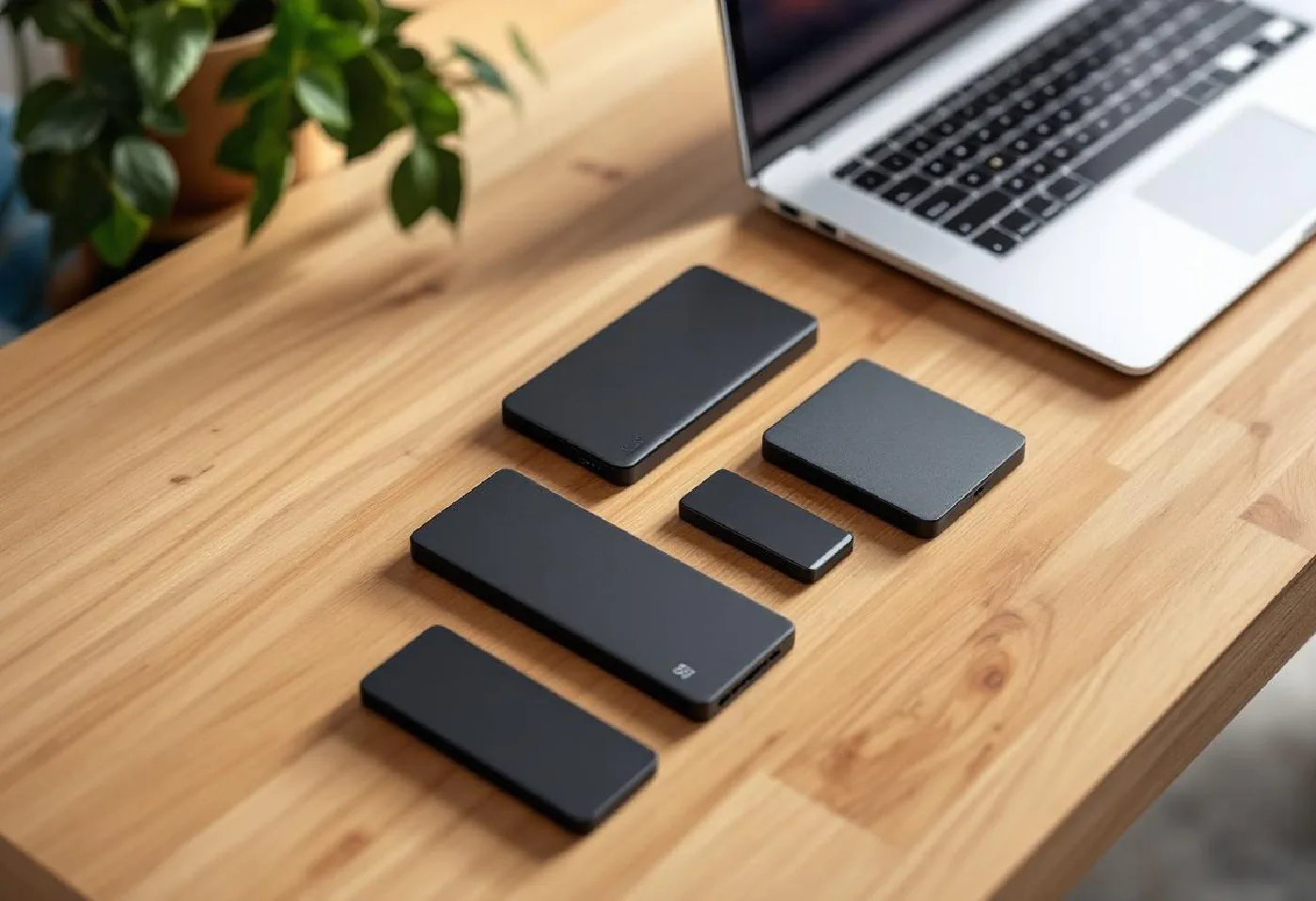
Working from home puts unique demands on storage. You might be editing large video or photo files on a laptop with limited internal storage, shuttling projects between a home office machine and a client’s office, maintaining an offsite backup of critical work, or just running apps and large datasets from an external drive to keep your laptop’s SSD free.
External SSDs have gotten dramatically faster, smaller, and cheaper in recent years. In 2026, USB 3.2 Gen 2 (10 Gbps) is the baseline for good portable SSDs, Thunderbolt 4 drives hit 2,000+ MB/s, and NVMe enclosures with USB4 are approaching internal drive speeds in a pocket-sized package. Whatever your use case, there’s an external SSD that delivers.
Also see: Best USB-C Docking Stations | Best Monitors for Working From Home | Best Keyboard for Working From Home
Quick Comparison #
| Drive | Interface | Max Speed | Capacity | Price (1TB) |
|---|---|---|---|---|
| Samsung T9 | USB 3.2 Gen 2×2 | 2,000 MB/s | 1–4 TB | ~$109 |
| WD My Passport SSD | USB 3.2 Gen 2 | 1,050 MB/s | 500 GB–4 TB | ~$89 |
| SanDisk Extreme Pro V2 | USB 3.2 Gen 2×2 | 2,000 MB/s | 1–4 TB | ~$99 |
| Samsung T7 Shield | USB 3.2 Gen 2 | 1,050 MB/s | 1–2 TB | ~$79 |
| Crucial X9 Pro | USB 3.2 Gen 2 | 1,050 MB/s | 1–4 TB | ~$69 |
| OWC Envoy Pro Elektron | USB4/Thunderbolt 4 | 2,800 MB/s | 1–2 TB | ~$159 |
| Sabrent Rocket XTRM-Q | USB4/Thunderbolt 3 | 2,700 MB/s | 1–2 TB | ~$149 |
Best External SSDs for Working From Home #
Samsung T9 — Best Overall for Remote Workers #
The Samsung T9 is the external SSD that gets recommended for serious work use, and it’s earned that reputation. Supporting USB 3.2 Gen 2×2 (20 Gbps), it delivers real-world sequential reads around 1,800–2,000 MB/s — fast enough to edit 4K video directly from the drive without a hint of stutter.
The T9 is built like a tank. Its rubberized coating absorbs drops, it’s MIL-STD-810G rated, and Samsung backs it with a 3-year warranty and the company’s long reputation for NAND quality. The included cable has both USB-C and USB-A connectors, and it works flawlessly with both Mac and Windows.
For working from home, the T9 at 2TB sits in a sweet spot — enough for a full project library, fast enough to work directly from, portable enough to throw in a bag.
Key Features:
- USB 3.2 Gen 2×2 (20 Gbps) — up to 2,000 MB/s read
- MIL-STD-810G drop resistance (up to 3m)
- AES 256-bit hardware encryption
- Available 1 TB, 2 TB, 4 TB
- 3-year warranty
Pros:
- Genuinely fast at rated speeds
- Excellent build quality and drop protection
- Hardware encryption for work security
- Compatible with all OS platforms
Cons:
- USB 3.2 Gen 2×2 requires compatible host port for full speed
- Slightly larger than budget alternatives
- No IP rating for water resistance
Check Price on Amazon US | Check Price on Amazon UK
WD My Passport SSD — Best for Everyday File Storage #
The WD My Passport SSD is the practical choice for most home office workers who need reliable, fast storage for documents, backups, and media without the premium pricing. It maxes out at 1,050 MB/s via USB 3.2 Gen 2 — faster than any spinning drive and plenty fast for regular file transfers, cloud backups, and even light video work.
What sets the My Passport SSD apart is WD’s software suite: WD Backup (automated backup scheduling), WD Security (password protection + hardware encryption), and WD Discovery for cloud storage integration. For people who want a “plug in and it just works” backup solution, it’s hard to beat.
The drive is slim, lightweight, and available in several colors — not an irrelevant consideration when your desk is part of your background on video calls.
Key Features:
- USB 3.2 Gen 2 (10 Gbps) — up to 1,050 MB/s
- AES 256-bit hardware encryption with password protection
- WD Backup software included
- Available 500 GB, 1 TB, 2 TB, 4 TB
- 5-year limited warranty
Pros:
- Excellent value for performance
- Comprehensive included software
- Long 5-year warranty
- Slim, portable form factor
Cons:
- Not the fastest option (1,050 MB/s vs 2,000 MB/s on premium drives)
- Software only for Windows/Mac (not Linux)
- No ruggedization
Check Price on Amazon US | Check Price on Amazon UK
SanDisk Extreme Pro V2 — Best Rugged Option #
If you’re regularly commuting to a co-working space, client office, or coffee shop with your drive, the SanDisk Extreme Pro V2 is built for the journey. It’s IP65 rated (dust and water resistant — survives getting soaked or caught in rain), 2-meter drop-tested, has a carabiner loop for clipping to a bag, and achieves the same 2,000 MB/s speeds as Samsung’s T9.
The forged aluminum and rubberized exterior feels premium and survives the kind of casual bag abuse that would destroy a thin drive. Available up to 4TB, it’s the go-to for photographers and video professionals who work on location.
Key Features:
- USB 3.2 Gen 2×2 — up to 2,000 MB/s read / 2,000 MB/s write
- IP65 dust and water resistance
- 2-meter drop protection
- Carabiner attachment loop
- Available 1 TB, 2 TB, 4 TB
Pros:
- Best-in-class ruggedization with IP65
- Matches the fastest drives at this price
- Distinctive, attractive design
- Great for professionals on the go
Cons:
- Slightly bulkier than non-rugged alternatives
- Full speed requires USB 3.2 Gen 2×2 host
- Premium over basic drives
Check Price on Amazon US | Check Price on Amazon UK
Samsung T7 Shield — Best Mid-Range Value #
The Samsung T7 Shield hits a compelling price-to-performance ratio for home office workers who want reliability without spending heavily. It achieves 1,050 MB/s read via USB 3.2 Gen 2, which is genuinely fast for most workflows — fast enough for large file transfers, Time Machine backups, and even light 4K editing.
The “Shield” designation means it has Samsung’s beaded texture for grip and IP65 dust/water resistance — meaningful upgrades over the standard T7 at a modest price premium. It’s a drive you can leave on your desk, shove in a pocket, or toss in a bag without worrying.
Key Features:
- USB 3.2 Gen 2 — up to 1,050 MB/s read
- IP65 dust and water resistance
- MIL-STD-810G shock resistance
- AES 256-bit hardware encryption
- 3-year warranty
Pros:
- Great price for IP65 + 1,050 MB/s
- Samsung reliability and warranty
- Slim and pocketable
- Works with USB-A and USB-C
Cons:
- Standard T7 speeds (not Gen 2×2)
- Smaller max capacity than T9
- No included software suite
Check Price on Amazon US | Check Price on Amazon UK
Crucial X9 Pro — Best Budget Pick #
Crucial (Micron’s consumer brand) makes excellent budget storage, and the X9 Pro continues that tradition. At ~$69 for 1TB, it delivers 1,050 MB/s via USB 3.2 Gen 2 and comes with IP55 water/dust resistance. It’s not the flashiest drive, but it’s dependable, affordable, and backed by Micron’s manufacturing quality.
For workers who need external storage for backups, document archives, or running virtual machines from external storage, the X9 Pro provides excellent value. If your use case is primarily moving files between machines rather than working live off the drive, this is all the drive you need.
Key Features:
- USB 3.2 Gen 2 — up to 1,050 MB/s
- IP55 dust and water resistance
- Small, pocketable form factor
- 5-year limited warranty
- Available 1 TB, 2 TB, 4 TB
Pros:
- Lowest price per GB at this performance tier
- IP55 protection is solid for the price
- Long 5-year warranty
- Very compact
Cons:
- Not the fastest (Gen 2 only, not Gen 2×2)
- No hardware encryption
- Plain aesthetic
Check Price on Amazon US | Check Price on Amazon UK
OWC Envoy Pro Elektron — Best Thunderbolt/USB4 Drive #
If you’re on a Mac with Thunderbolt 4 or USB4, the OWC Envoy Pro Elektron unlocks a completely different tier of performance. Achieving up to 2,800 MB/s read and 2,600 MB/s write, it’s fast enough to feel like a fast internal SSD — editing raw video, working with large Xcode projects, or running VMs from the drive is seamless.
OWC’s build quality is exceptional — the CNC aluminum enclosure dissipates heat effectively, keeping sustained speeds high. It’s compact enough to carry daily and includes both Thunderbolt 4 and USB-C cables. For Mac-centric professional workflows where every second of file transfer time counts, this is the premium choice.
Key Features:
- USB4 / Thunderbolt 4 (40 Gbps)
- Up to 2,800 MB/s read / 2,600 MB/s write
- NVMe internal drive
- CNC aluminum enclosure for heat management
- Available 1 TB, 2 TB
Pros:
- Near-internal-SSD speeds
- Excellent build quality and heat management
- Thunderbolt and USB4 compatible
- Great for Mac professional workflows
Cons:
- Expensive compared to USB 3.2 alternatives
- Full speed only on Thunderbolt/USB4 hosts
- Overkill for basic file storage needs
Check Price on Amazon US | Check Price on Amazon UK
How to Choose the Right External SSD #
Match Your Interface to Your Use Case #
The most important factor is your computer’s port capabilities:
- USB-A (older laptops): USB 3.2 Gen 1 (5 Gbps) is your max — speeds top out around 500 MB/s regardless of the drive
- USB-C with USB 3.2 Gen 2 (most 2023-2026 laptops): Up to 1,050 MB/s — the sweet spot for value
- USB-C with USB 3.2 Gen 2×2: Up to 2,000 MB/s — getting rarer on laptops but common on recent desktops
- Thunderbolt 3/4 or USB4 (Mac, some premium PCs): Up to 2,800–3,000 MB/s — where premium drives shine
Check your laptop’s port spec before buying. A 2,000 MB/s drive plugged into a Gen 1 port will still max out at ~450 MB/s.
Capacity Planning #
- 500 GB–1 TB: Good for document backup, project archives, or supplemental storage
- 2 TB: Sweet spot for most power users — fits large project libraries, photo/video archives
- 4 TB: For video editors, photographers, or anyone needing large-scale portable storage
Speed vs. Portability #
If you primarily use the drive at your desk, prioritize speed — a USB4/Thunderbolt drive is worth the investment. If you’re regularly mobile, prioritize build quality, drop resistance, and IP rating. The fastest drives aren’t always the toughest.
Working Securely from External Storage #
For remote workers handling sensitive client files, hardware encryption (AES 256-bit, available on Samsung T7/T9, WD My Passport) means your files are protected even if the drive is lost or stolen. This is far more secure than software encryption and doesn’t require your OS to be running to protect the data.
Pair your external SSD with a quality USB-C docking station for your desk setup — you get consistent high-speed access while keeping the drive hot-swappable for travel.
Frequently Asked Questions #
What’s the difference between USB 3.2 Gen 2 and Gen 2×2? #
Both use USB-C connectors, but Gen 2 offers 10 Gbps bandwidth (up to ~1,000 MB/s real-world), while Gen 2×2 doubles that to 20 Gbps (up to ~2,000 MB/s). Gen 2×2 requires a compatible host controller — check your laptop’s specs. A good laptop stand keeps your ports accessible while keeping things ergonomic. Most laptops from 2023 onward have Gen 2, but Gen 2×2 is less common.
Can I use an external SSD to run apps or even boot my OS? #
Yes — modern USB 3.2 and Thunderbolt external SSDs are fast enough to run applications and even boot macOS or Windows with excellent performance. Running your OS from a Thunderbolt SSD feels nearly identical to an internal drive. For Windows, the “Boot Camp”-style setup from USB is more complex; on macOS, it’s straightforward.
Is it safe to work directly from an external SSD (not just backup)? #
Yes, and many professionals do exactly this — keeping active project files on an external SSD — along with a tidy cable management setup so they can work across multiple machines. If you regularly work across locations, a portable monitor pairs perfectly with an external SSD for a truly mobile workstation. Modern SSDs have excellent endurance ratings (TBW — terabytes written). A 1TB consumer SSD typically has 300–600 TBW rated endurance, which far exceeds normal working use. The main risk is physical damage to the drive, which is why a ruggedized option makes sense for regular mobile use.
How do I choose between USB-C and Thunderbolt external SSDs? #
If your primary machine is a Mac (especially M-series), Thunderbolt 4 drives maximize the connection’s bandwidth and are worth the premium. If you use Windows or work across multiple machines (including older ones), USB-C drives are more universally compatible. Most Thunderbolt drives also work at USB speeds when connected to non-Thunderbolt ports, so they’re not a stranded investment.
Should I encrypt my external SSD for work use? #
If you store any client data, sensitive documents, or proprietary files, yes — especially for a drive you carry with you. Hardware-encrypted drives (Samsung T7/T9, WD My Passport SSD) enforce encryption at the drive controller level: no password, no access, regardless of which computer you plug it into. Software encryption (BitLocker, VeraCrypt) is an alternative but requires your OS environment to be working. Hardware encryption is the simpler, more reliable choice for mobile professionals.