The jump from a standard 27-inch monitor to an ultrawide is one of the most noticeable productivity upgrades in a home office. You’re not just getting more pixels — you’re getting a fundamentally different way to work. Two windows side by side at full size. A spreadsheet and your email open simultaneously without one cramping the other. A browser alongside your document with room to actually read both.
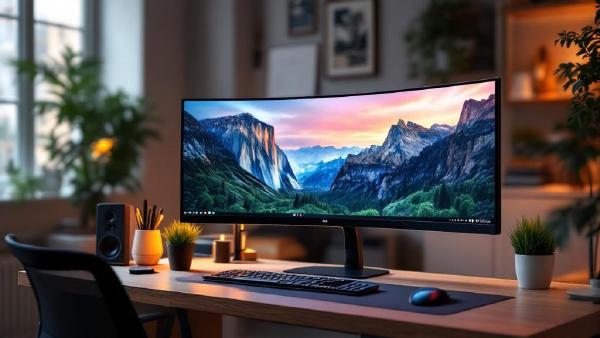
The 34-inch ultrawide (3440×1440) is the sweet spot: wide enough to feel genuinely expansive, not so wide that you’re turning your head to reach the corners. Curved panels bring the edges closer to your field of view and reduce neck movement. USB-C connectivity simplifies your desk by letting a laptop deliver video, data, and power through a single cable.
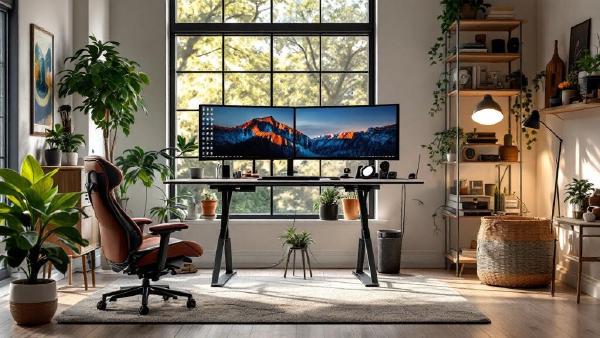
Your desk setup is only as good as the accessories on it. A great monitor on a great standing desk still feels chaotic if cables snake everywhere, your laptop teeters on a stack of books, and every flat surface is buried under pens, chargers, and sticky notes. The right desk accessories turn that cluttered surface into a focused, productive workspace — and you don’t need to spend a fortune to get there.
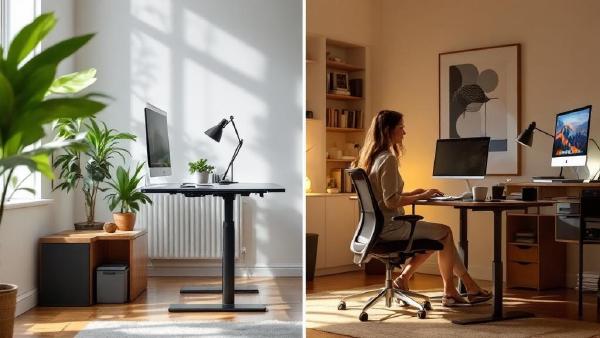
Introduction # Here’s a number that should make you uncomfortable: the World Health Organization estimates that physical inactivity contributes to roughly 3.2 million deaths globally every year. And for those of us who work desk jobs — which is a growing majority of the workforce — a huge portion of that inactivity happens while we’re “at work,” sitting in the same position for eight, ten, sometimes twelve hours a day.
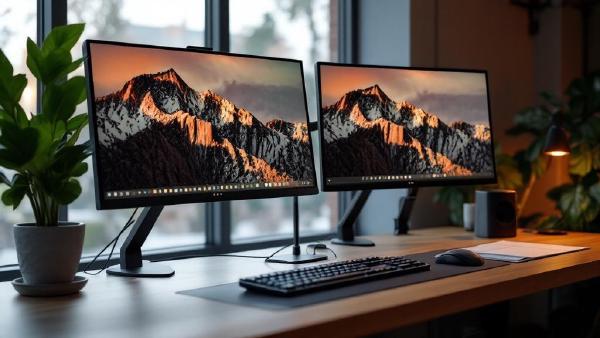
A dual monitor setup is one of the biggest productivity upgrades you can make to your home office. Research from the University of Utah found that dual monitors increase productivity by 20-30% for knowledge workers. Having your email or chat on one screen while working on a document, spreadsheet, or design on the other eliminates the constant alt-tabbing that fragments your focus.
This guide walks you through everything you need to set up dual monitors — from choosing the right hardware to configuring display settings and positioning your screens ergonomically. If you’re still shopping for monitors, check our best monitors for working from home guide first.
Working from home is brilliant — no commute, your own coffee, trousers optional. But a poorly set-up home office can turn that freedom into neck pain, eye strain, and a productivity slump before you’ve even noticed it happening.
Whether you’re setting up your first dedicated home workspace or upgrading from the kitchen table, this home office setup guide covers everything you need to know. We’ll walk through the essentials in order of priority, suggest specific products where helpful, and share the mistakes we see people make most often.